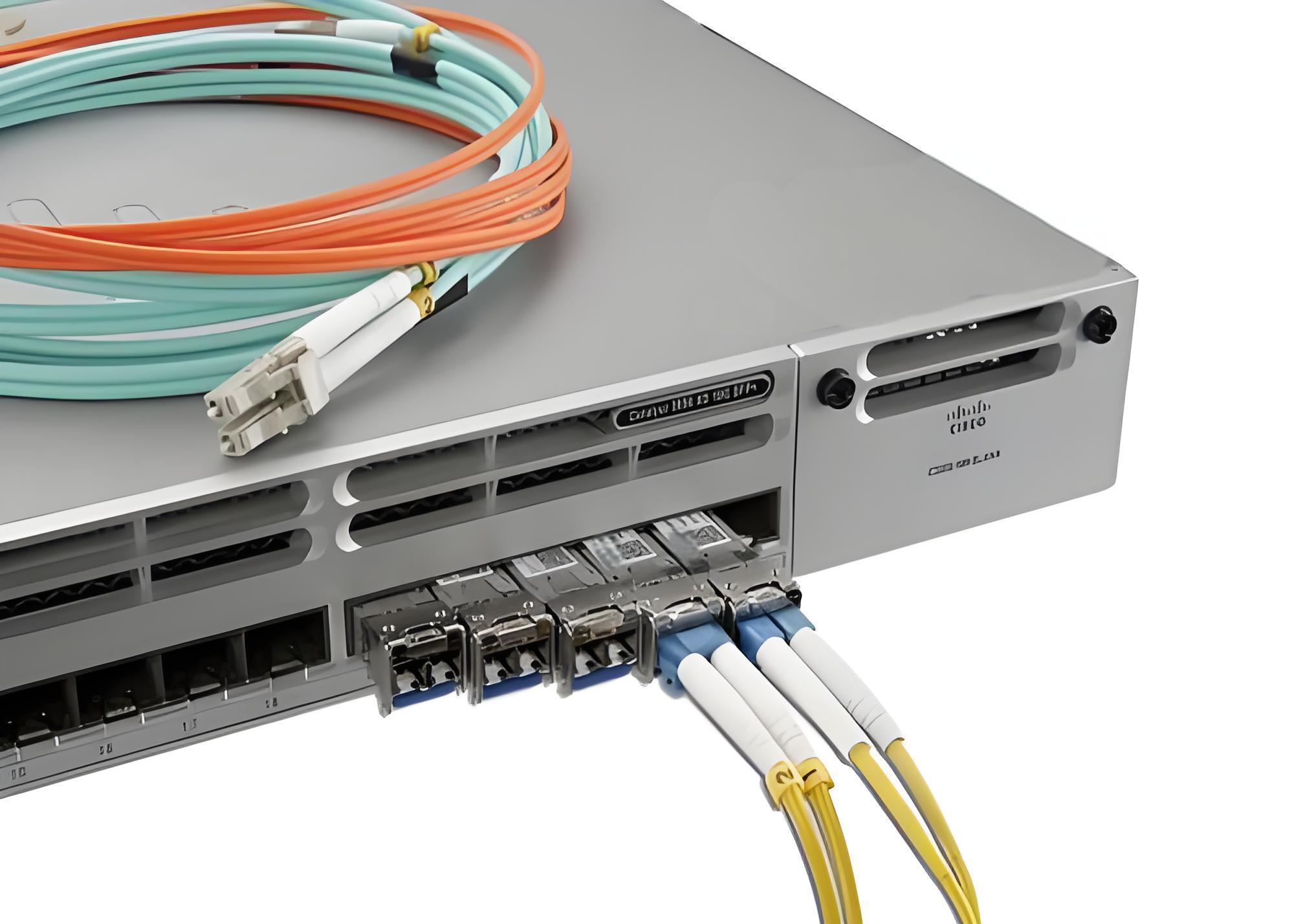
1. Common Compatibility Concerns
One of the most frequently asked questions from network engineers and IT buyers is:
“Will a third-party optical transceiver work with my switch?”
The short answer is: Yes, in most cases. However, compatibility depends on several factors, including the switch vendor’s firmware policies and whether the transceiver complies with MSA (Multi-Source Agreement) standards.
2. Why Do Compatibility Issues Occur?
Most compatibility issues are not due to hardware defects in the third-party transceiver. Instead, they are caused by:
| Cause | Explanation |
|---|---|
| Vendor Lock-In Policies | Some switch manufacturers intentionally program their operating systems to reject non-certified (non-OEM) transceivers. When an “unauthorized” module is inserted, the switch may: – Disable the port – Raise an “invalid transceiver” error message – Log a warning but still allow operation |
| Missing or Incompatible EEPROM Data | Original transceivers contain a programmed EEPROM chip that stores vendor‑specific identification data. Some third‑party modules may not fully replicate the required vendor code, leading the switch to reject them. |
| Firmware / OS Version | Newer switch firmware versions sometimes tighten compatibility checks. A third‑party module that worked with an older OS version may suddenly stop working after a firmware upgrade. |
| Non‑MSA Compliant Switches | Although most modern switches follow MSA standards, some legacy or highly proprietary systems only accept their own branded optics. |
3. How to Identify a Compatibility Problem
Common error messages or symptoms include:
- Cisco:
SFP validation failed,Transceiver is not supported - Arista:
Unsupported transceiver. Port disabled. - Juniper:
Unrecognized transceiver,unsupported optic - Huawei:
This transceiver is not certified,Port has been shut down - Generic symptoms: Port LED remains off, no link, interface shows “down/down”, excessive error counters.
4. Solutions for Third-Party Compatibility Issues
If you encounter compatibility issues with a third-party SFP/SFP+/QSFP module, try the following solutions (in order of preference):
| Solution | Description |
|---|---|
| 1. Choose MSA-Compliant Modules | Purchase third-party transceivers that explicitly state MSA (Multi-Source Agreement) compliance. These are designed to work with any standard SFP+ port, regardless of brand. |
| 2. Use Modules with Vendor-Specific Coding | Many reputable third-party manufacturers offer transceivers with programmable EEPROM that can be pre‑coded to match your switch vendor. Request “Cisco‑coded”, “Arista‑coded”, “Juniper‑coded”, etc., from your supplier. |
| 3. Disable Vendor Check via CLI (if available) | Some switches allow you to turn off vendor validation. This is often the quickest fix. Cisco (IOS / IOS-XE): service unsupported-transceiverno errdisable detect cause gbic-invalidArista (EOS): unsupported-transceiver (in configuration mode)Juniper (JunOS): set chassis fpc x pic x sfp x unsupported-transceiverHuawei: undo transceiver validation (interface view)⚠️ Note: Disabling the check may void the switch warranty in some cases. Use at your own risk. |
| 4. Downgrade or Upgrade Switch Firmware | Occasionally, a specific firmware version is more tolerant of third-party optics. Check online forums or your vendor’s documentation for recommended versions. |
| 5. Use a Compatibility / Mode Button | Some switches (e.g., certain MikroTik or Ubiquiti models) have a hardware or software “compatibility mode” that relaxes transceiver checks. |
5. Switch Vendor Compatibility Overview (12 Major Vendors)
The table below summarizes compatibility considerations for 12 major networking equipment manufacturers:
| # | Vendor | Typical Compatibility with Third-Party Optics | Notes |
|---|---|---|---|
| 1 | Cisco | ⚠️ Moderate – often requires vendor check bypass (service unsupported-transceiver) | Most strict vendor-locking policy. Coding required for seamless operation. |
| 2 | Arista | ⚠️ Moderate – requires unsupported-transceiver command | Accepts third-party optics after CLI bypass. |
| 3 | Juniper | ⚠️ Moderate – requires unsupported-transceiver configuration | Works after bypass; some older platforms are more restrictive. |
| 4 | Huawei | ⚠️ Moderate – requires undo transceiver validation | Disables certification check per interface or globally. |
| 5 | Nokia (Alcatel-Lucent) | ✅ Generally compatible | MSA-compliant modules usually work without modification. |
| 6 | ZTE | ✅ Generally compatible | Few vendor-locking restrictions. |
| 7 | MikroTik | ✅ Very compatible | No vendor lock – any MSA-compliant SFP/SFP+ works. |
| 8 | Ubiquiti (UniFi / EdgeMAX) | ⚠️ Limited – some models require coded modules | EdgeMAX more flexible; UniFi sometimes rejects non-Ubiquiti optics. |
| 9 | TP-Link | ✅ Very compatible | Consumer/prosumer focus; no vendor lock. |
| 10 | D-Link | ✅ Very compatible | MSA-compliant modules typically work out of the box. |
| 11 | HPE (Aruba) | ✅ Generally compatible | Most third-party optics work; occasional EEPROM coding needed for older ProVision switches. |
| 12 | Extreme Networks (Enterasys) | ✅ Generally compatible | Legacy Enterasys may be picky; newer Extreme switches are more tolerant. |
Legend:
- ✅ Very compatible / Generally compatible = typically works with standard MSA modules
- ⚠️ Moderate = may require CLI bypass or vendor‑coded modules
- ⚠️ Limited = some models are restrictive; testing recommended
6. Best Practices to Avoid Compatibility Issues
| Best Practice | Why It Helps |
|---|---|
| Test before bulk deployment | Order one or two samples first and test them in your actual environment (switch model + firmware version). |
| Keep a list of validated modules | Document which third‑party part numbers work with each switch model and OS version. |
| Work with a trusted third‑party vendor | Choose suppliers who pre‑code modules, provide test reports, and offer fast replacement for incompatible units. |
| Plan for firmware upgrades | When upgrading switch firmware, re‑validate critical third‑party optics in a lab environment first. |
| Use OEM optics for mission‑critical links | For 24/7 high‑availability core links, some organizations choose OEM (original) optics to avoid any policy‑related surprises. |
Summary Table
| Issue | Solution |
|---|---|
| Switch rejects third‑party optic | Use MSA‑compliant or vendor‑coded module |
| Error: “unsupported transceiver” | Disable vendor check via CLI (varies by vendor – see Section 4) |
| Still not working after bypass | Check switch firmware; try upgrading or downgrading |
| Need guaranteed compatibility | Request vendor‑specific coding from your supplier; test samples first |
| Mission‑critical link | Consider OEM optics or thoroughly validated third‑party alternatives |
CLI Commands to Disable Third-Party Transceiver Checks
| # | Vendor | Platform / OS | CLI Command | Notes |
|---|---|---|---|---|
| 1 | Cisco | IOS / IOS-XE | service unsupported-transceiverno errdisable detect cause gbic-invalid | Global configuration mode. First command allows non-certified modules. Second command prevents ports from being disabled due to invalid modules. |
| NX-OS (Nexus) | no hardware transceiver-module unsupported | Interface configuration mode or global mode. | ||
| 2 | Arista | EOS | unsupported-transceiver | Global configuration mode. Ports will automatically enable after entering the command. |
| 3 | Juniper | JunOS | set chassis fpc <x> pic <x> sfp <x> unsupported-transceiveror set chassis fpc <x> pic <x> unsupported-transceiver | Replace <x> with the actual slot numbers. Some versions support bypassing the entire slot. |
| 4 | Huawei | VRP (S/C/E series) | undo transceiver validation | Execute in interface configuration mode. Disables validation for a single port. |
| 5 | Nokia (Alcatel-Lucent) | SR OS | Usually no command needed. If forced:configure port <x/y/z> transceiver permit-3rd-party | Nokia generally has good compatibility. A few versions require this command. |
| 6 | ZTE | ZXR10 | Usually no command needed. In rare cases:set port <x> transceiver ignore-vendor-check | ZTE has good compatibility with MSA-compliant modules. This command is for backup purposes. |
| 7 | MikroTik | RouterOS / SwitchOS | No command needed – natively supports third-party modules | All MSA-compliant modules are plug-and-play. No vendor lock. |
| 8 | Ubiquiti | UniFi / EdgeMAX | EdgeMAX (Vyatta style):set interfaces ethernet eth<x> sfp-disable-unsupportedUniFi: Usually cannot be bypassed; requires coded modules | UniFi is more restrictive. Pre-coded modules are recommended. |
| 9 | TP-Link | JetStream / Omada | No command needed – automatically accepts third-party modules | Designed for small to medium businesses. No strict vendor validation. |
| 10 | D-Link | xStack / DGS series | No command needed – automatically accepts third-party modules | Standard MSA-compliant modules are plug-and-play. |
| 11 | HPE (Aruba) | ProVision / Comware / ArubaOS-CX | ProVision (legacy HPE):allow-unsupported-transceiverComware (HPE/3Com): transceiver phony-alarm-disable | ArubaOS-CX (newer platform) usually requires no command. |
| 12 | Extreme Networks | EXOS / VOSS | EXOS:configure unsupported-transceiverVOSS (legacy Enterasys): set port <x> ignore-sfp-validation | Command syntax differs between old and new platforms. Legacy Enterasys devices are more strict. |
This article is for general informational purposes only. If there are any omissions or errors, please contact the author for correction.